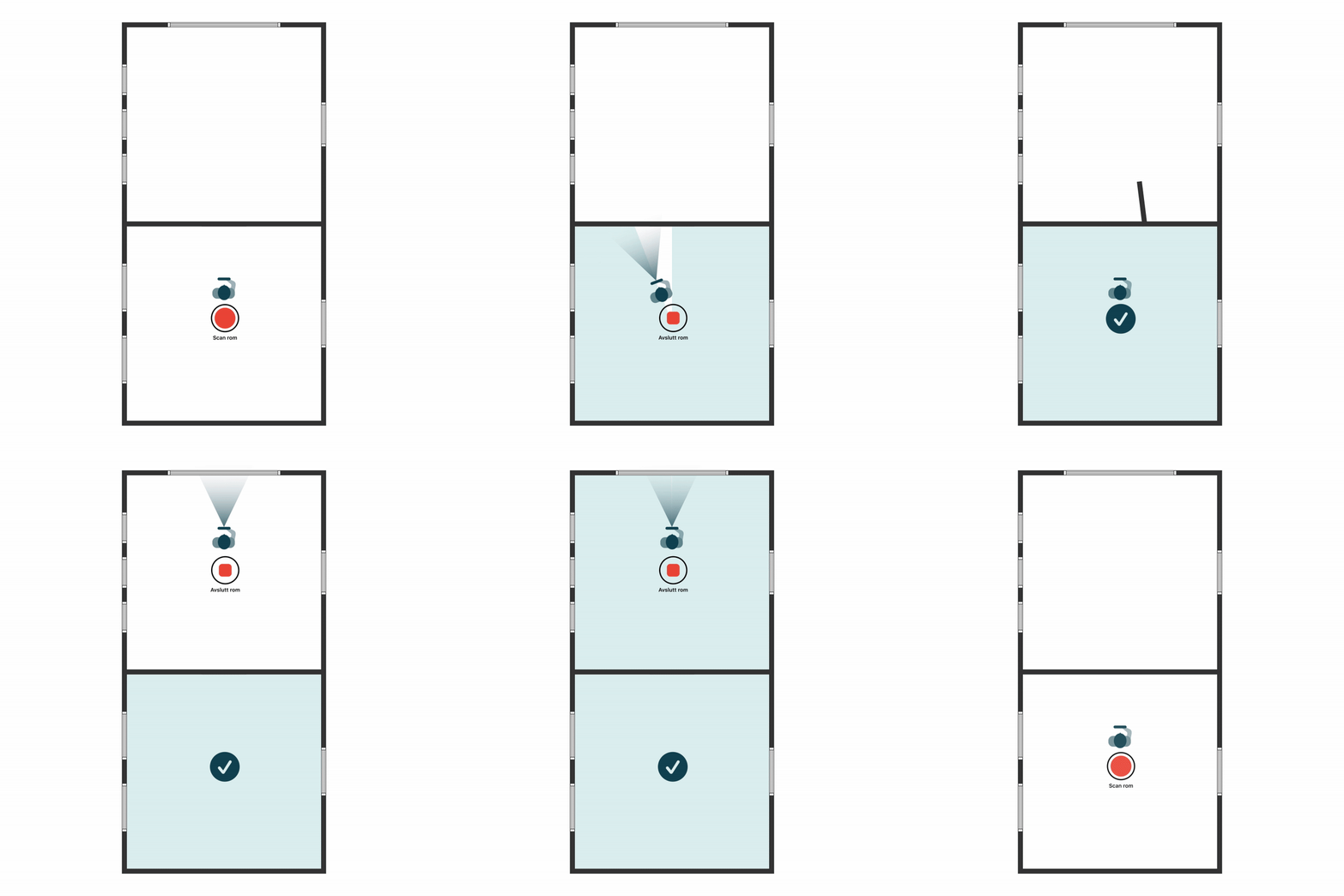
Scanning multiple rooms
A simple workflow for scanning multiple rooms in the same inspection.
Basic process
- Finish the 3D scan of the room you're in
- Physically move to the next room
- Tap «Start» when you're in the new room
- Repeat for all rooms
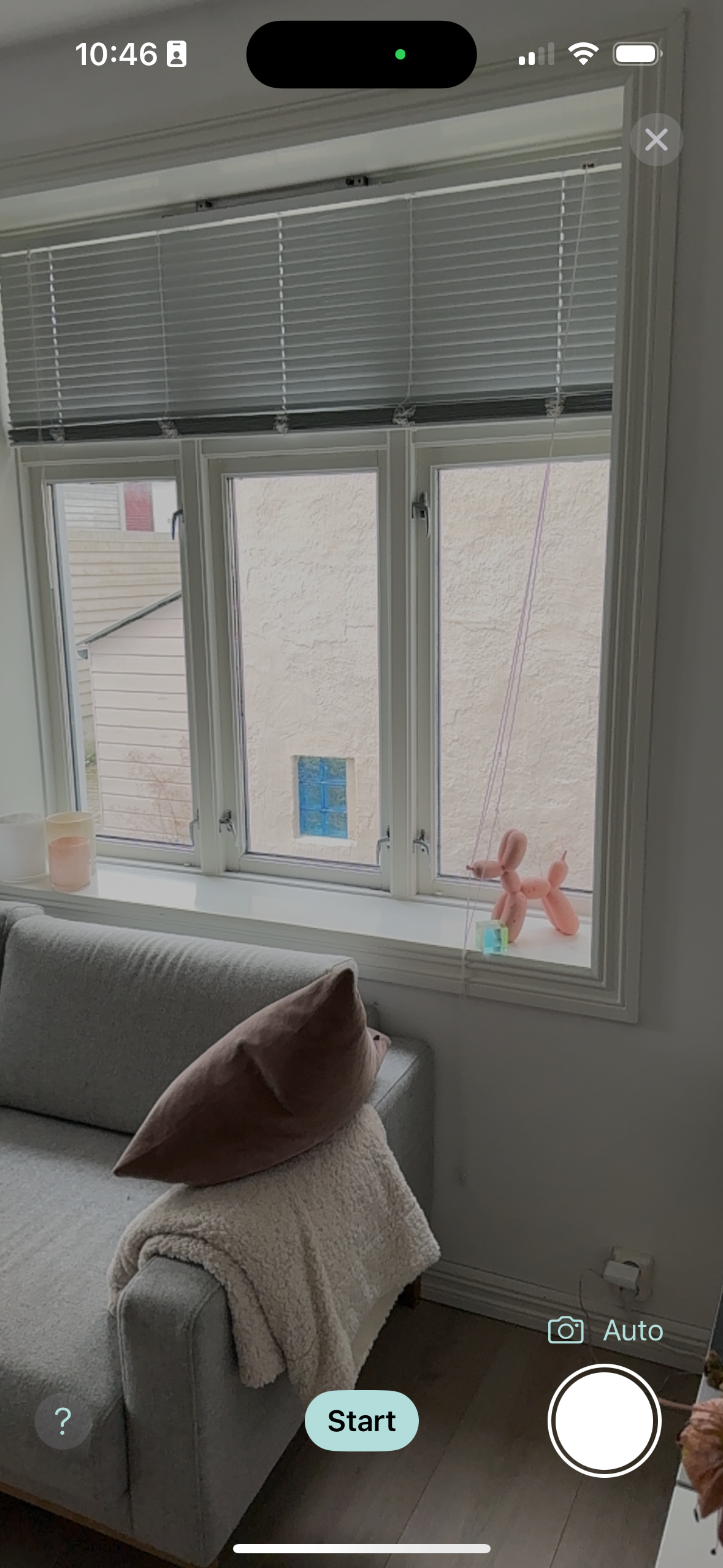
Important: Always finish scanning a room before you move to the next.
Between floors
Finish all rooms on the current floor first. Then go to the next floor and start a new scan there. Don't walk stairs with an active scan.
Saving and naming
All rooms are stored locally on the phone. You can change room names after scanning, and the app handles floor organisation automatically.
If something goes wrong
You can re-scan a room, or delete incorrectly scanned rooms from the list. See Upload error message if you have problems when uploading.