
Managing projects
Note — iPhone/iPad vs Android: On iPhone/iPad, scans are stored locally and you must upload the inspection manually (one-way app → web). On Android, everything syncs automatically to the web — you should not upload or delete inspections manually.
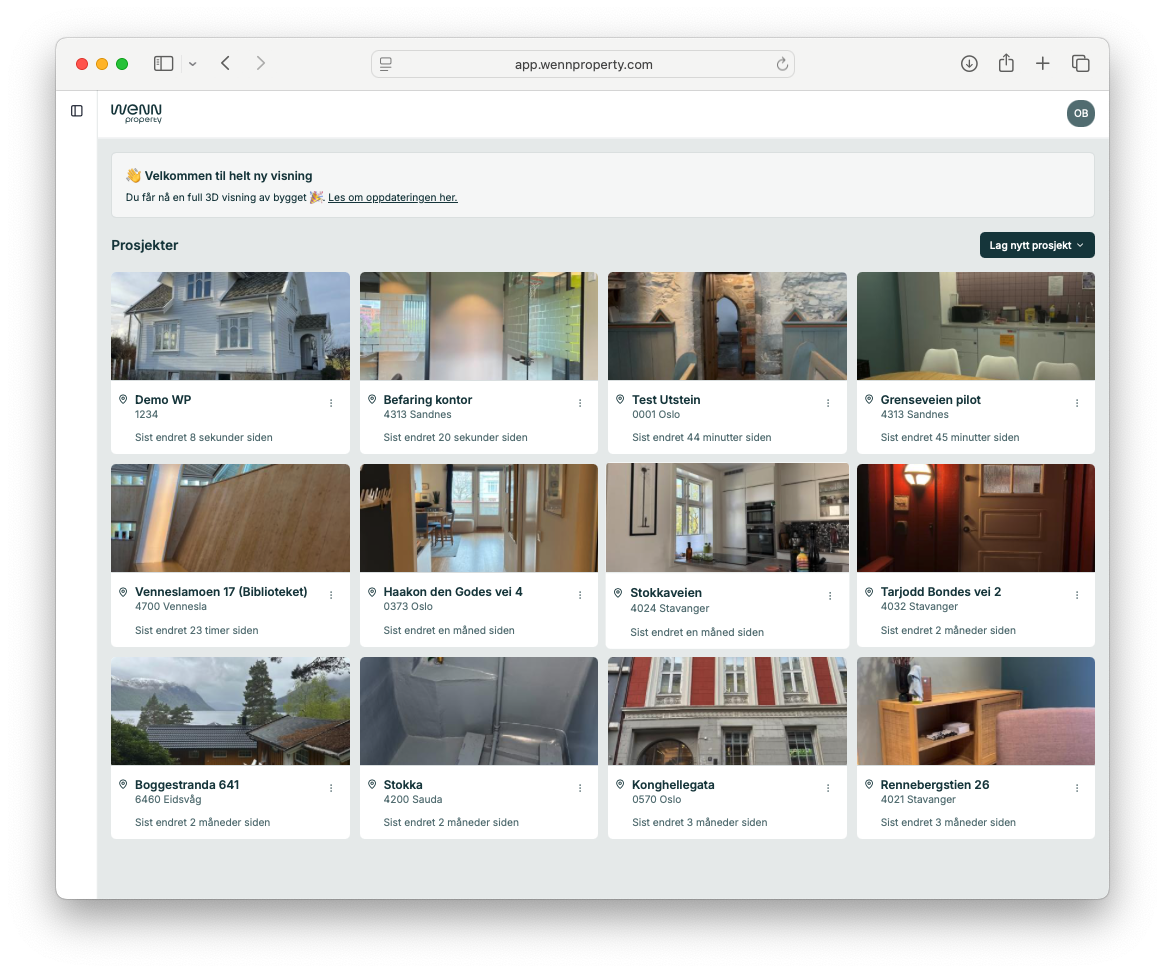
The main page in Wenn Property shows all your projects. From here you can create new projects, filter, search and archive.
The project overview
When you log in, you see your projects as cards in a grid. Each card shows a cover photo, project name, address and when it was last modified.
Filter and search
At the top of the overview you'll find three tabs to filter the projects:
- «Mine» (Mine) — shows only projects you've created or are associated with
- «Alle» (All) — shows all projects in the organisation
- «Arkiverte» (Archived) — shows archived projects
Use the search field to search by address. You can also sort the projects by «Sist endret» (Last modified) with the dropdown on the right.
Create a new project
Tap «+ Opprett nytt prosjekt» (+ Create new project) in the top right. This creates an empty project in the web application. To fill it with 3D data and measurements, you need to upload an inspection from the iOS app to this project.
Archive a project
Tap the three-dot menu (⋯) on the project card and choose «Arkiver» (Archive). The project moves to the «Arkiverte» (Archived) tab and disappears from the main view. You can restore it later from the «Arkiverte» tab.
Delete a project
Tap the three-dot menu (⋯) on the project card and choose «Slett prosjekt» (Delete project). Deleted projects cannot be restored.